
Record the sound of any app on Linux, without cables or a microphone
What PipeWire and Flatpak are, how to install Tapelark for Linux, and your first recording, step by step.
You're listening to a radio show in your browser, a talk on a livestream or a playlist, and you think: I'd like to have that as a file, to listen to again later. On Linux that used to be a tinkering job: put a microphone in front of the speaker, set up a virtual audio cable, or fiddle with the sound settings until the right output gets recorded.
Tapelark for Linux makes it simple: you choose an app, press record, and Tapelark files what it plays into your own library as separate tracks with names. This guide explains how it works, how to install Tapelark and how to make your first recording.
Three terms you'll come across
PipeWire is the part of Linux that carries the sound from your apps to your speakers and headphones. Think of it as a mixing desk: every app that's playing sound has its own channel there. That's what Tapelark uses. It doesn't capture what comes out of the speaker; it listens directly to one app's channel. That's why it needs no microphone and no cable, and your sound settings stay as they are. Current versions of Fedora, Ubuntu and Debian already use PipeWire out of the box.
Flatpak is a package format for Linux apps. A Flatpak app runs the same on almost every distribution because it brings everything it needs with it. It also runs in a shielded environment (a "sandbox") and is updated together with your other Flatpak apps. Tapelark comes as a Flatpak.
GNOME and KDE Plasma are the two big desktop environments on Linux, in other words what you see on screen: windows, panels, menus. Ubuntu and Fedora use GNOME by default, and many other distributions offer KDE Plasma. Tapelark runs on both.
What Tapelark does
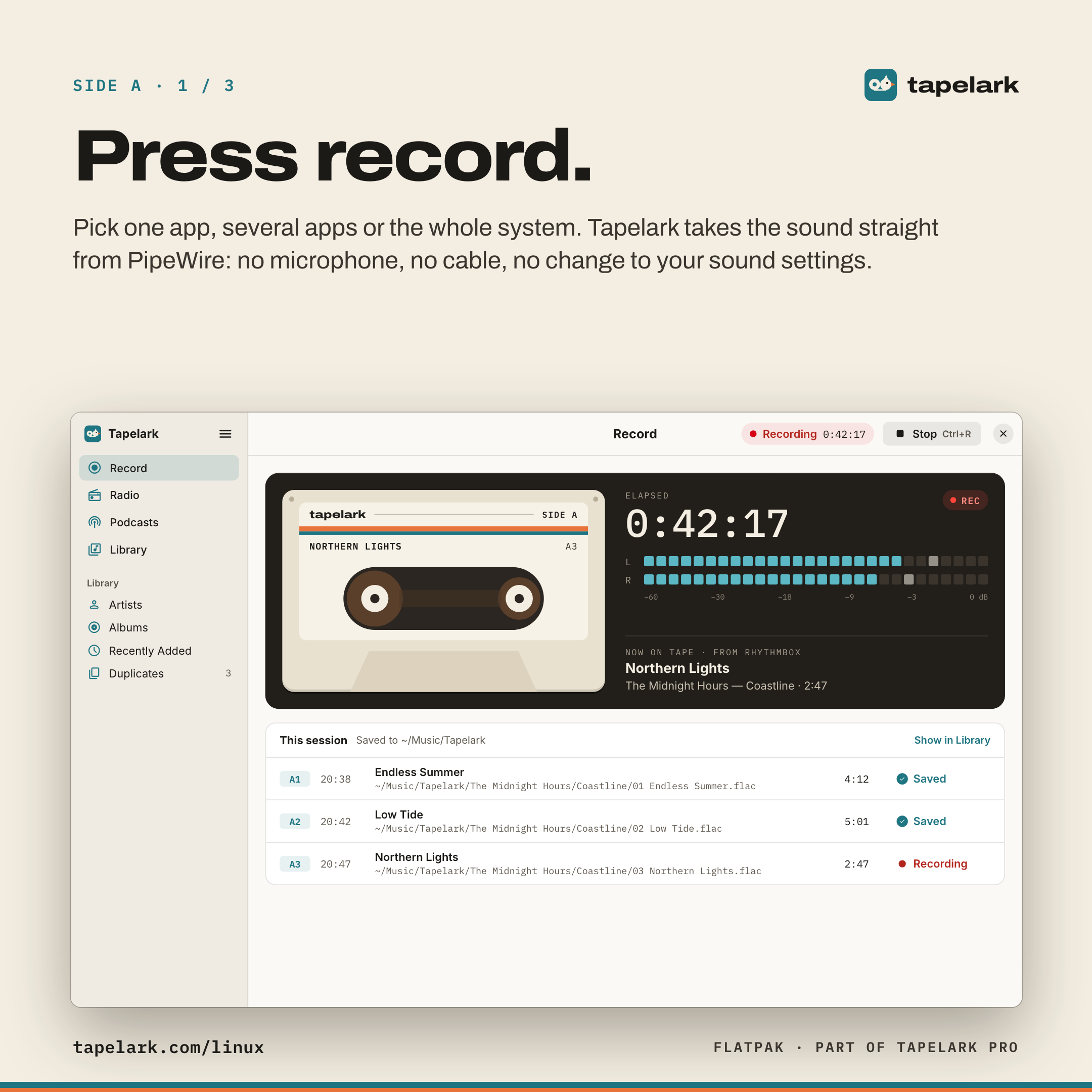
- Records one app, several apps or the whole system. You choose, say, your music player or your browser, and Tapelark records only that app. A system notification or a video in another window doesn't end up in the recording.
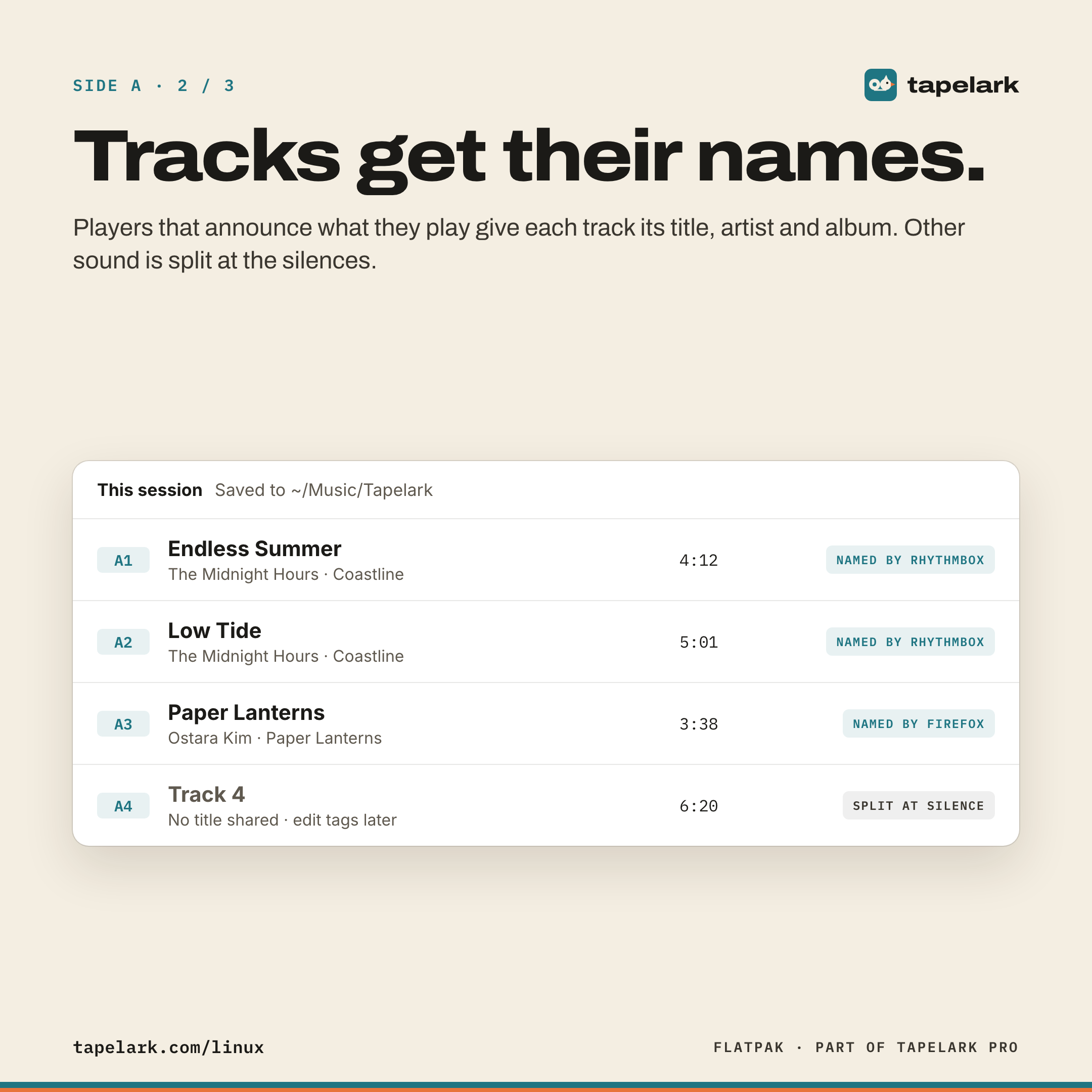
- Tracks get their names. Most music players and browsers tell the desktop what they're playing; you often see it in the media area of your panel. Tapelark uses that information: each track is split when the song changes and gets its title, artist and album. If an app doesn't announce anything, Tapelark splits at the short silences between songs.
- Internet radio and podcasts. Tapelark searches a public directory of thousands of radio stations. You can record a station song by song, schedule recordings for a set time and subscribe to podcasts.
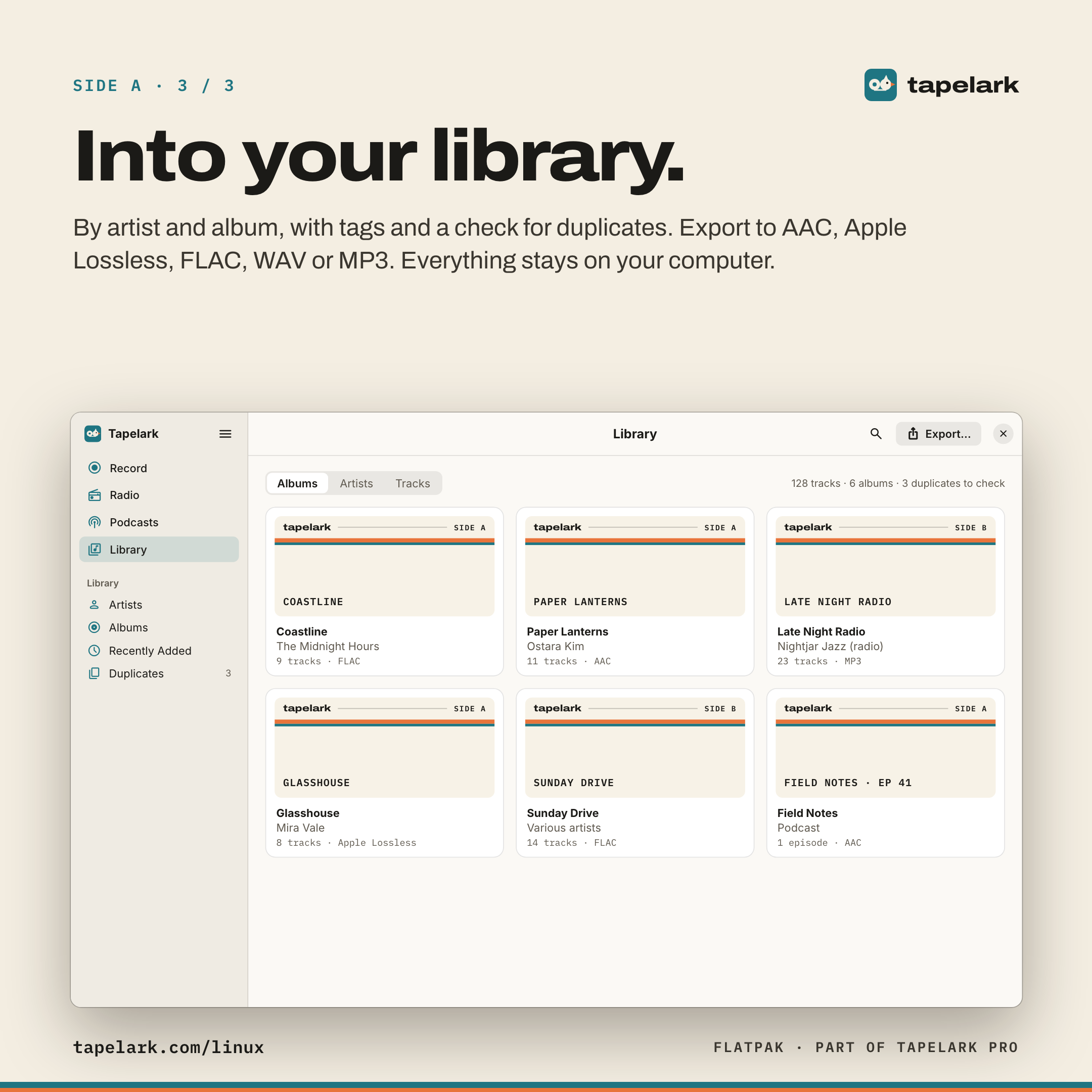
- Your own library. Everything goes into a library you can browse by artist and album. You can edit tags, find duplicate tracks and export as AAC, Apple Lossless, FLAC, WAV or MP3, for example to a USB stick for the car.
The app speaks English and 13 other languages. Everything stays on your computer: you don't need an account, and nothing is uploaded. While recording, Tapelark shows a red "Recording" so you can always see that it's recording. Tapelark is meant for private use and never gets around copy protection.
How to install Tapelark
You need a Linux desktop with PipeWire and GNOME or KDE Plasma, on a computer with an Intel/AMD or ARM processor.
1. Check that PipeWire is running (optional). Open a terminal and type:
pactl info | grep "Server Name"
If the answer says "on PipeWire", you're all set. If your system doesn't know the command, that's no problem: PipeWire is the default on current versions of Fedora, Ubuntu and Debian anyway.
2. Get Flatpak. Fedora already comes with Flatpak. On Ubuntu, install it once with:
sudo apt install flatpak
3. Install Tapelark. This one command adds Tapelark's own package source and installs the app:
flatpak install https://tapelark.com/linux/tapelark.flatpakref
Confirm the prompts with y. The first time, Flatpak also downloads the "GNOME runtime" from Flathub, the big Flatpak directory. It's a basic kit that many Flatpak apps share, which is why the first download takes a little longer.
Rather not use the terminal? On the Tapelark for Linux page you'll also find a file for your processor that you can open with your software centre. It gets updates from the same source.
4. Start it. Tapelark then appears in your app menu. Updates come through Flatpak, together with your other apps (flatpak update, or through your software centre).
Good to know: Tapelark itself doesn't come from Flathub but from its own signed package source on tapelark.com. So for installation and updates you're trusting Tapelark as the publisher, as with any app you download directly from its developer.
Your first recording, step by step
- Start playback in the app you want to record, for example a song in your music player.
- Open Tapelark and choose Record in the sidebar (Ctrl+1).
- Under Record from, choose One app and click the app. The list only shows apps that are playing sound right now. If it's empty, start playback first.
- Click Start Recording (or Ctrl+R). The very first time, Tapelark briefly explains what it's about to do, because unlike the Mac, Linux doesn't ask for permission when an app records the sound of other apps. Click Start Recording there once more.
- Under Now on tape you can see which track is being recorded, and under This session each finished track appears as soon as it's saved. You don't have to stop the recording for that.
- Stop Recording ends it. You'll find your tracks under Library (Ctrl+4).
Tip: If an app doesn't announce its tracks and there's no silence between songs, press Split Now (Shift+Ctrl+S) when the song changes. Tapelark starts a new track right there.
Another tip: For radio, Tapelark records the station's stream directly from the internet, not through the sound card. So you can listen to something else at the same time or mute your computer.
What's still missing on Linux
Tapelark for Linux is younger than the Mac version, and some things are still to come.
- No song recognition. The names come from the app that's playing. Tapelark saves a track without a name with the date and time, and you name it later with Edit Tags….
- No mute button while recording, as there is on the Mac.
- No video recording. Window video and Tapelark Pro's other features are on the Mac only so far.
- Some radio stations Tapelark can only play, not record: those that only stream as Ogg, Opus or FLAC. If the same station also has an MP3 or AAC stream, Tapelark offers you that one.
What does Tapelark cost?
You can try Tapelark free for 14 days with every feature, with no account and no licence key. Until you buy, every recording stops after 10 minutes; after the trial Tapelark stays on as the free version with that limit, and everything you've recorded is yours to keep.
If you want to lift the limit, you have two options. Both are a one-time purchase with no subscription, and the key arrives by email:
- Tapelark for Linux is the Linux-only licence: for one person and all their Linux computers. With it you record without a time limit, with everything Tapelark for Linux can do. You can buy it on the Tapelark for Linux page or right in the app with Buy Tapelark… under Preferences > Licence.
- Tapelark Pro covers the Mac and Linux with one key. On Linux it gives you the same as the Linux licence, plus the Mac app with the Pro features. So it's worth it if you also have a Mac.
You'll find the current prices on the Pricing page.
Who is Tapelark for?
For anyone who likes internet radio and wants to keep a show, who collects podcasts to listen to offline, or who wants to listen again to a talk from a livestream at their own pace. And for anyone who keeps their own music collection as files rather than only streaming everything. If you'd rather not deal with audio cables and sound settings, Tapelark is made for exactly that.
The user guide is built into the app: press F1 in Tapelark.
Curious how Tapelark went from the Mac to Linux in ten days? Its developer wrote about it: Tapelark for Linux, ten days after the Mac.