
How to record a radio show at a set time, on Mac, Windows and Linux
Pick the station, set the start time and the weekdays, and Tapelark records the radio show while you sleep or work: one file per song, in your own library.
The best radio shows air at the worst times: a jazz hour at 11 at night, a DJ mix on Saturday while you're out, a documentary during work. Many of them are never repeated, and not every station keeps an archive.
With Tapelark you record a radio show the way you once set a tape deck with a timer, without the tape. You pick the station, the start time and the weekdays. Tapelark records the show from the station's own stream at that time, every week if you like, and files it in your library. This guide shows how, on the Mac, on Windows and on Linux.
Download TapelarkSee pricesFree for 14 days, every feature
What you need
- Tapelark on a Mac (macOS 14.4 or later), on a PC with Windows 11, or on a Linux desktop with PipeWire and GNOME or KDE Plasma.
- The station as an internet radio stream. Many stations that broadcast over the air also stream on the internet.
- A computer that is switched on and awake when the show starts, with Tapelark open. Its window can be closed.
How a scheduled recording works
A schedule is four things: a station, a start time, a duration, and the weekdays it repeats on. When the time comes, Tapelark connects to the station and writes its stream to your disk until the duration is over.
- The station doesn't have to be playing. Tapelark records the stream itself, not the sound of your computer, so you hear nothing and can listen to something else.
- Music shows arrive song by song. When the station sends song titles with its stream, Tapelark saves one named, tagged file per song. A talk show, or a station that sends no titles, arrives as one file.
- Everything lands in your Library, with the station as the album.
Step 1: Find the station
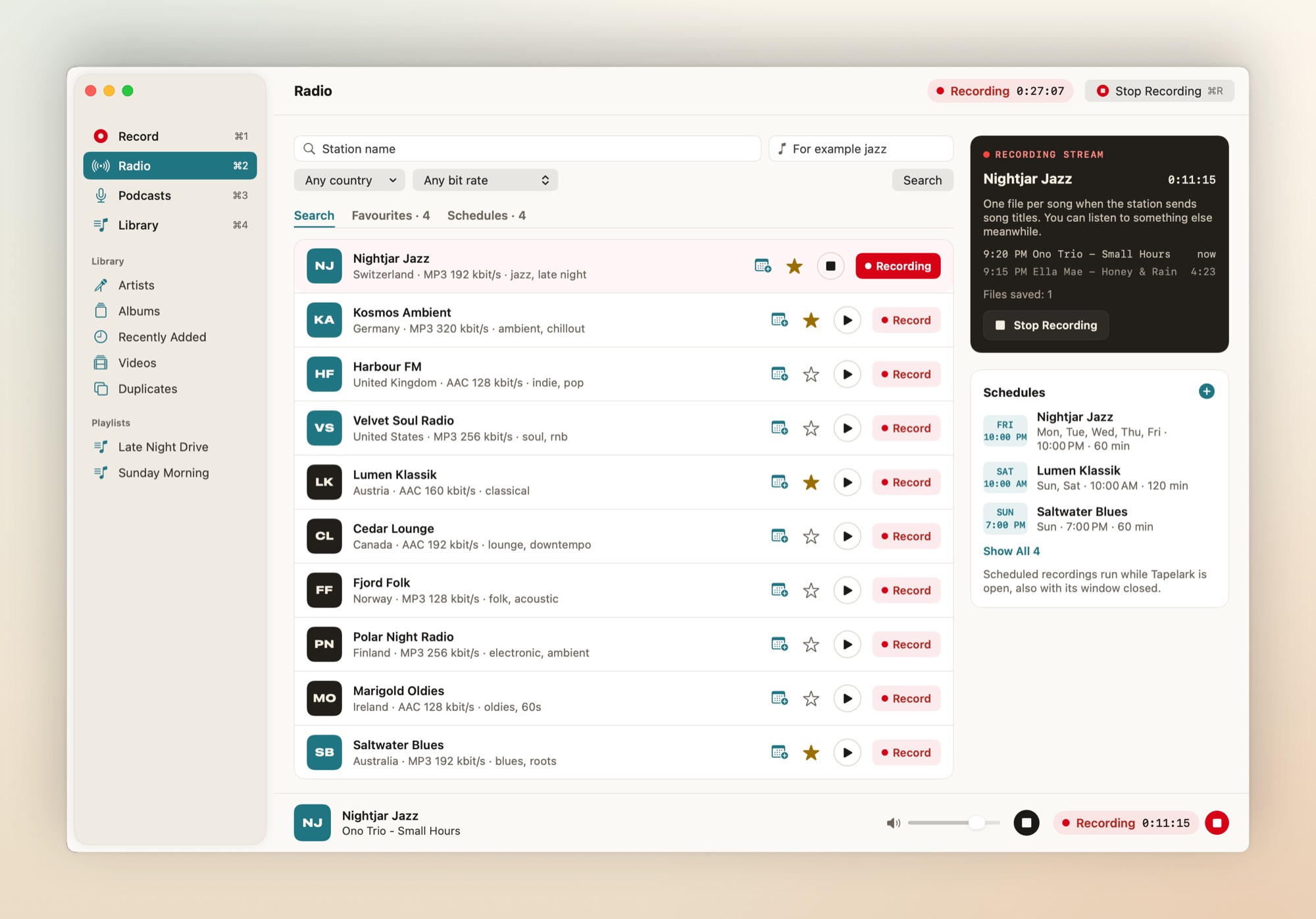
Open Radio (⌘2 on the Mac, Ctrl+2 on Windows and Linux) and search for the station by name. Listen for a moment to make sure it is the right one, then click its star to keep it under Favourites.
Step 2: Open the schedule editor
On the Mac and on Windows, click the calendar button on the station (Schedule a Recording of …). On every platform you can also choose New Schedule… in Radio's Schedules, or press ⌥⌘N on the Mac and Ctrl+Alt+N on Windows and Linux, and pick the station in the editor.
Step 3: Set the time and the length
Set the Start time and the Duration, from 5 minutes to 12 hours. On the Mac you also set the Date of the first recording, and on Linux the first day.
Shows rarely start on the second, and the news often runs over. Start a few minutes early and choose a duration that leaves room at the end: you can cut off what you don't want later with Trim… in the Library.
Step 4: Choose once or every week
Under Repeat on, choose the weekdays the show airs: Monday to Friday for a daily show, Saturday for a weekly one. With no day chosen, the recording runs once.
Step 5: Save, and leave Tapelark open
Click Save. The schedule now appears under Schedules with its days, time and length.
Scheduled recordings run while Tapelark is open, also with its window closed:
- On the Mac, Tapelark stays in the menu bar, and its icon there turns into a red record symbol while it records.
- On Windows, Tapelark stays in the notification area while a schedule waits, and its icon shows a red dot while it records.
- On Linux, Tapelark's item in the panel says what it is waiting for, for example "Waiting for 1 scheduled recording". On GNOME without an app indicator extension, it appears under Background Apps in the quick settings.
Download TapelarkSee pricesSet it once, get the show every week
The one thing to watch: sleep
Tapelark can't wake a sleeping computer. During a recording it keeps the computer from going to sleep on its own, but the computer has to be awake when the show starts.
- For a show at night, leave the computer on, plugged in, and set it not to go to sleep by itself for that evening. The display may switch off.
- A laptop usually goes to sleep when its lid is closed. Leave the lid open.
- On the Mac and on Linux, if the computer sleeps through the start and wakes during the show, Tapelark records the time that's left and tells you. A show it slept through entirely is reported as missed.
After the show
Open Library (⌘4 on the Mac, Ctrl+4 on Windows and Linux) and choose Recently Added. The show is there, as one file per song or as one long file, with the station as the album. From there you can play it, correct its tags with Edit Tags…, cut the beginning and the end with Trim…, cut a long recording in two with Split…, or copy it to another folder or a USB stick with Export….
Questions
Does Tapelark have to be open?
Yes. It doesn't have to be in front, and its window can be closed, but if you quit Tapelark the schedule doesn't run.
How long can a scheduled recording be?
From 5 minutes to 12 hours. Until you buy Tapelark, a recording stops after 10 minutes, scheduled ones too. The schedule editor tells you so for a longer schedule ("Until you buy Tapelark, this schedule records only its first 10 minutes."), and everything recorded is saved.
The station is marked Play only. Can I schedule it?
Stations marked Play only stream in a format Tapelark can play but can't record yet. When you save a schedule for one, Tapelark looks for another stream of the same station that it can record and offers it (Schedule That Stream).
Am I allowed to record a radio show?
Tapelark is for your own private listening. Follow the terms of the stations you listen to and the copyright law where you live. Tapelark never gets around copy protection: a stream protected by DRM is never recorded. More about private use.
What Tapelark costs
You can try Tapelark free for 14 days with every feature, with no account and no licence key. Until you buy, each recording stops after 10 minutes, and everything you've recorded is yours to keep.
Buying is a one-time purchase with no subscription, and the key arrives by e-mail. There is a licence for the Mac, one for Windows and one for Linux, each for one person on all their computers of that kind, and Tapelark Pro is one key for all three. You'll find the current prices on the Pricing page.
New to recording radio with Tapelark? Start with the guide for your computer: Mac, Windows 11 or Linux.
Never miss the show again
Schedule your first show today.
Tapelark is free for 14 days with every feature, with no account. Until you buy, each recording stops after 10 minutes, scheduled ones too, and everything recorded is yours to keep.