
How to record internet radio on your Mac, step by step
Find a station, press Record and get every song as its own named file. A walk-through of Tapelark 1.6 for the Mac, with a real screen recording.
A show you'd like to hear again, a DJ set that airs once, a station that plays exactly your kind of music: internet radio is full of things worth keeping. On a Mac that used to mean installing an audio driver, routing the sound through it and cutting the recording into songs by hand afterwards.
Tapelark does it in two clicks. You find the station, press Record, and Tapelark saves every song as its own file, named and tagged, in a library on your Mac. This guide shows each step with Tapelark 1.6.
Download TapelarkSee pricesFree for 14 days, every feature
What you need
- A Mac with macOS 14.4 or later, Apple silicon or Intel.
- Tapelark. The trial runs for 14 days with every feature and needs no account.
- An internet connection. No audio driver, no virtual cable, no microphone.
How it works
Tapelark connects to the station the way a radio app does and writes what arrives to your disk. It records the station's own stream, not the sound of your Mac. That has three practical effects:
- Nothing else ends up in the recording. A notification sound, a video call or a video in another window isn't part of the stream.
- You don't have to listen. Play something else, or mute the Mac, while Tapelark records.
- The sound stays as the station sent it. Tapelark keeps the station's MP3 or AAC stream as it arrives, without encoding it again.
When the station sends song titles with its stream, as most music stations do, Tapelark starts a new file at every new title.
Step 1: Install Tapelark
- Download Tapelark, open the disk image and move Tapelark to your Applications folder.
- Open it. The welcome guide explains, in six short steps, what Tapelark needs from macOS before macOS asks you.
- Click Start Using Tapelark.
Step 2: Find your station
Open Radio in the sidebar (⌘2). Type the station's name into the search field, or a genre such as jazz into the field beside it, and press Return. You can narrow the search by country and bit rate. With every field empty, Search lists the most popular stations.
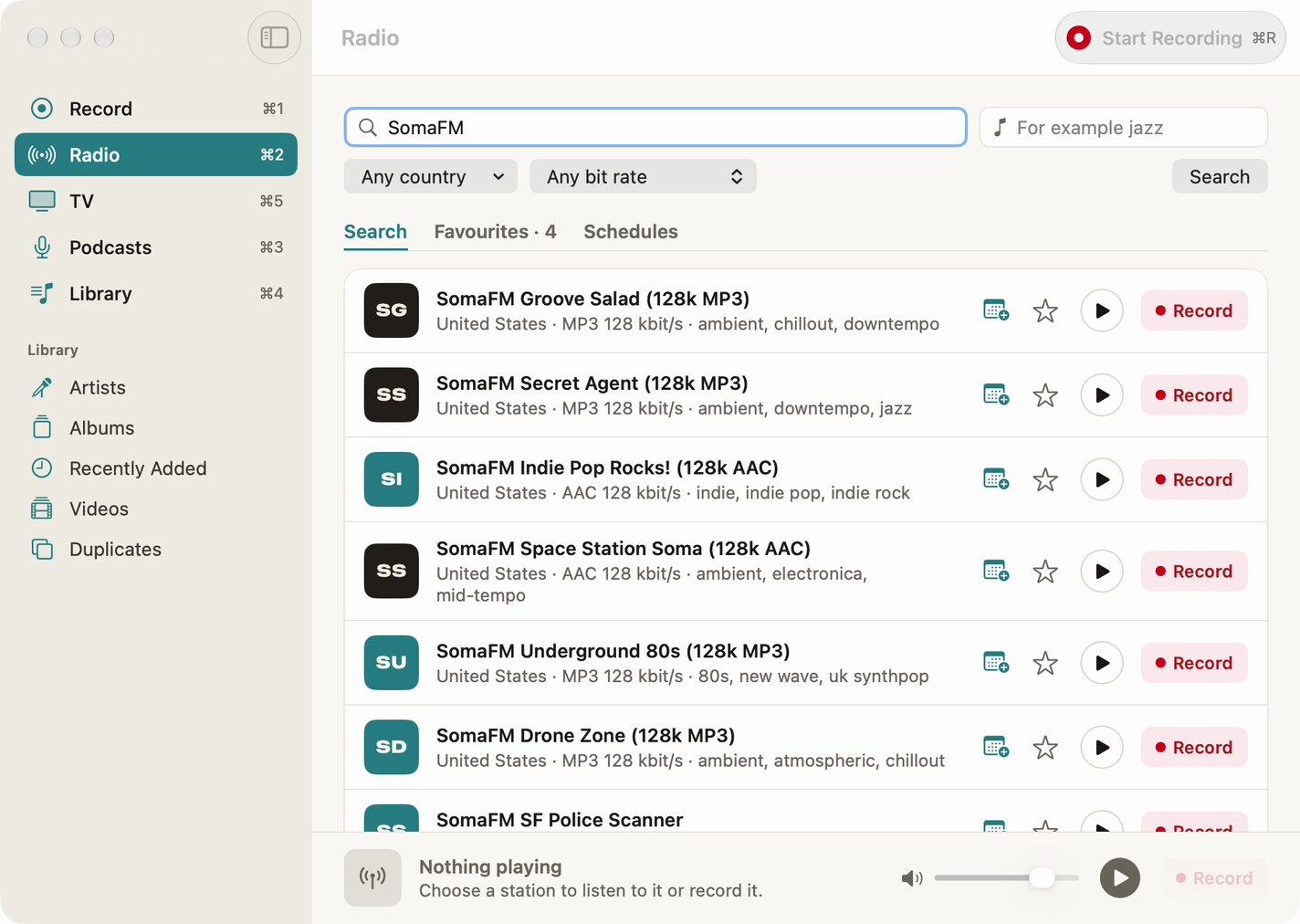
Each station shows its country, its format and bit rate, and its genres. The play button lets you listen first, and the star adds the station to your Favourites, so it's one click away next time.
Tapelark searches its own station list of tens of thousands of stations, built from public radio directories and stations Tapelark adds. It downloads the list from tapelark.com at most once a day when you use Radio and searches it on your Mac.
Step 3: Press Record
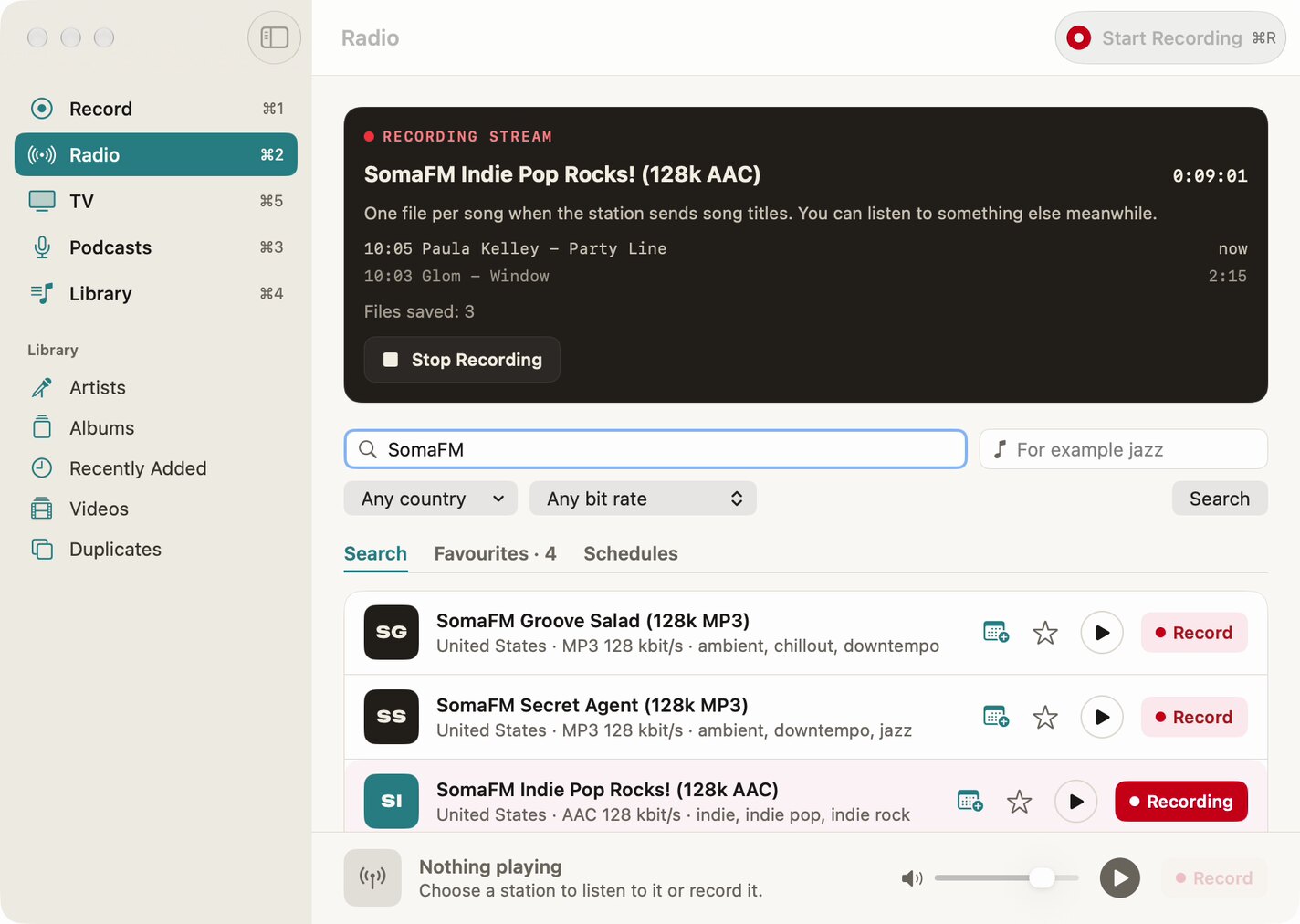
Click Record next to the station. A dark card appears at the top, Recording stream, with the station, the elapsed time and the song that is on tape right now. That's all: Tapelark is recording.
Step 4: Let the songs arrive
Every time the station announces a new song, Tapelark closes the file of the last one and starts the next. The card shows the song on tape and the one before it, each with the time it began, and Files saved counts along. You can keep working, close the window or listen to something else: Tapelark keeps recording from the menu bar, where its icon turns into a red record symbol.
Two things are good to know:
- The first and the last file are usually partial songs, because you rarely press Record exactly between two songs.
- Until you buy Tapelark, each recording stops after 10 minutes, in the trial too. The card tells you when, for example "Stops at 20:10 (10-minute limit)", and everything recorded so far is saved.
Step 5: Stop, and find your songs in the Library
Click Stop Recording, then open Library (⌘4) and choose Recently Added. Every song is there with its title and artist, and the station as the album.
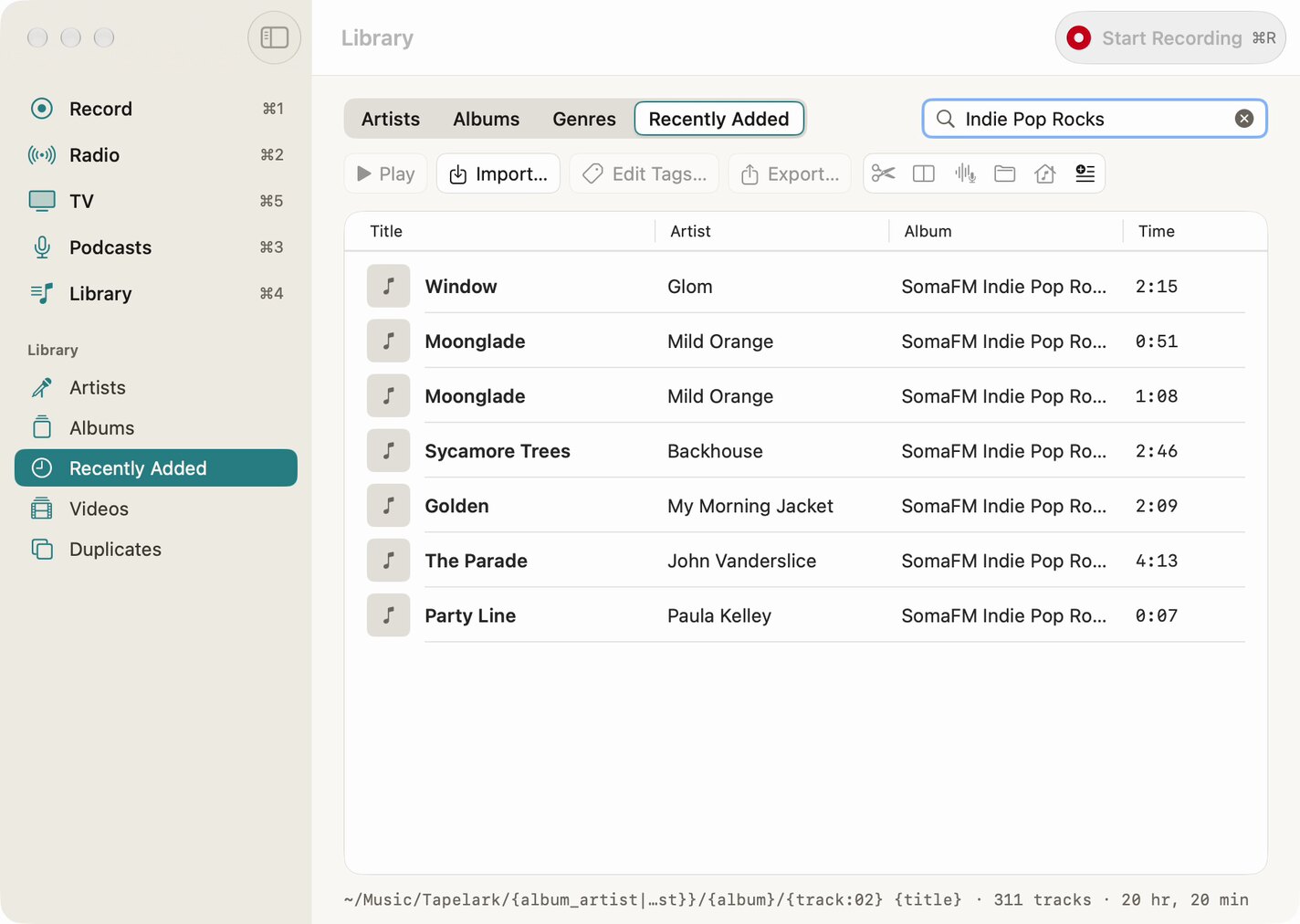
From here you can:
- Play a song with a double-click.
- Edit Tags… (⌘I) to correct a title, add a genre or a cover.
- Trim… (⌥⌘T) a partial song or cut off a jingle.
- Export… (⌘E) to a folder or a USB stick, for the car or another player.
- Reveal in Finder (⇧⌘R) to see the files. They're ordinary audio files, by default in the Tapelark folder in your Music folder, and they're yours.
Download TapelarkSee pricesYour first songs are saved a few minutes from now
Record a show while you're away
For a show that airs at a fixed time, set a schedule instead of pressing Record yourself:
- In Radio, click the calendar button next to the station (Schedule a Recording of …).
- Set the Start time, the Date and the Duration, from 5 minutes to 12 hours.
- Under Repeat on, choose the weekdays the show airs, or leave them empty to record once.
- Click Save and keep Tapelark open. Its window can be closed.
Your Mac has to be awake at the start time: Tapelark can't wake a sleeping Mac. The full walk-through is in How to record a radio show at a set time.
New in Tapelark 1.6: television channels
Since version 1.6, Tapelark has a TV section (⌘5). It lists the television channels of one country that stream on the public internet, from a public list kept by volunteers. Choose the country, click a channel's play button to watch it in Tapelark's window, and click Record to save the channel's own stream as a video in Library > Videos.
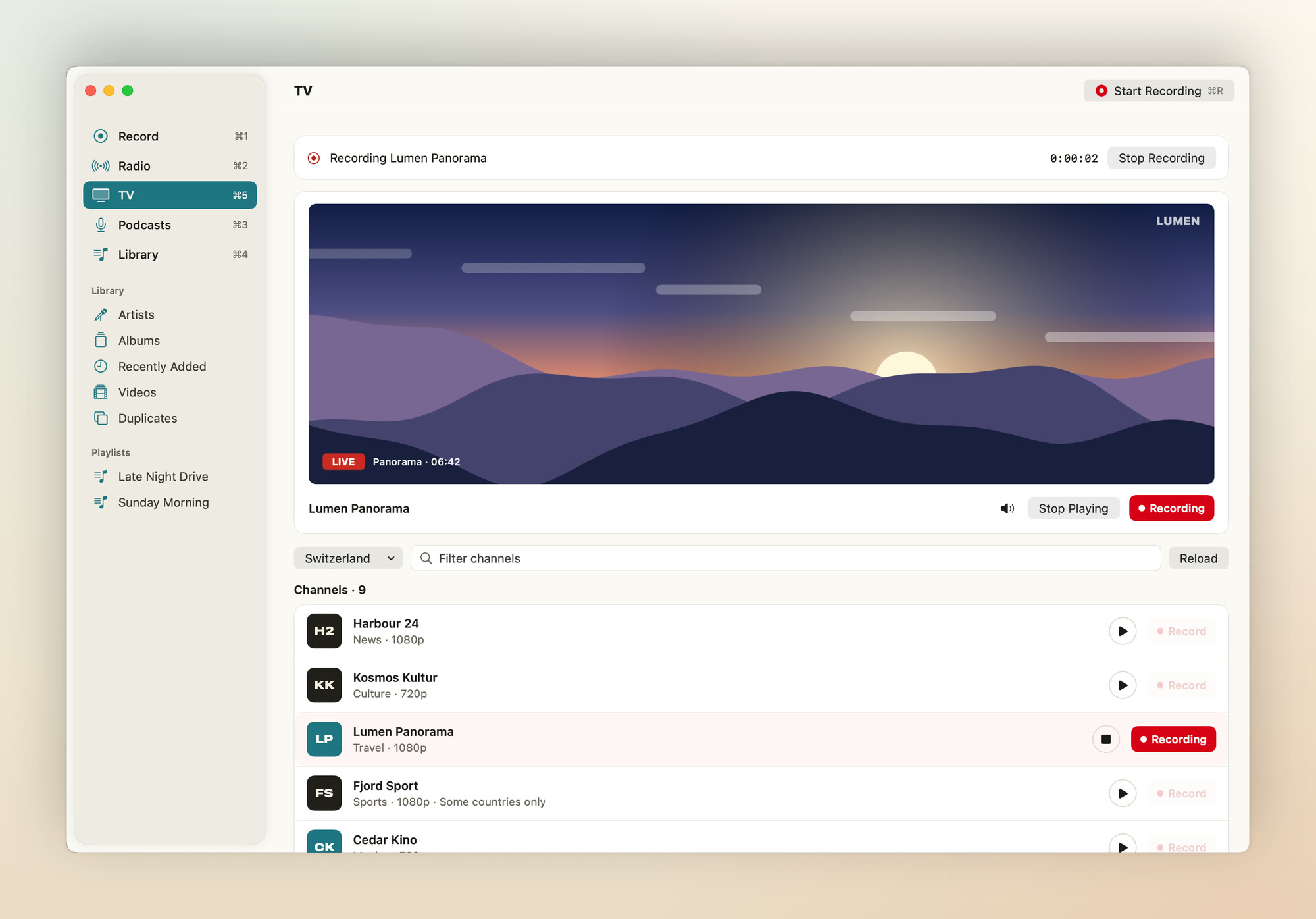
Recording channels is part of every licence. Nobody at Tapelark has checked the channels on that list: some are offline, and some play only in their own country. Tapelark doesn't host them, and a protected channel is never recorded. Until you buy Tapelark, a channel's recording stops after 10 minutes and carries a small "Clipped with Tapelark" mark.
If something doesn't work
The station is marked Play only. It streams in a format Tapelark can play but can't record yet: Ogg, Vorbis, Opus or FLAC. Press Record anyway: if the station list holds another stream of the same station that Tapelark can record, it offers that one and asks first.
Everything ends up in one file. The station sends no song titles, so there's nothing to cut at. Split… in the Library cuts a recording in two at the spot you choose.
A scheduled recording was missed. The Mac was asleep for the whole show. If it wakes during the show, Tapelark records the time that's left and tells you.
The recording stopped after 10 minutes. That's the limit until you buy Tapelark. A licence removes it.
Am I allowed to record radio?
Tapelark is for your own private listening. Follow the terms of the stations you listen to and the copyright law where you live. Tapelark never gets around copy protection: a stream protected by DRM is never recorded. More about private use.
What Tapelark costs
You can try Tapelark free for 14 days with every feature, with no account and no licence key. Until you buy, each recording stops after 10 minutes; after the trial Tapelark stays on as the free version with that limit, and everything you've recorded is yours to keep.
Buying is a one-time purchase with no subscription. One licence is for one person on all their Macs, and the key arrives by e-mail. You'll find the current prices on the Pricing page. In the app, Buy Tapelark… under Settings > Licence opens the checkout page in your web browser.
Want the short version of this guide? See Record internet radio on your Mac, one song per file. Recording a browser tab or another app instead of a station works too: How to record internal audio on a Mac.
On a Windows PC or on Linux instead? See How to record internet radio on Windows 11 and How to record internet radio on Linux.
Ready when you are
Record your first station today.
Tapelark is free for 14 days with every feature, with no account. Until you buy, each recording stops after 10 minutes, and everything recorded is yours to keep.