
How to record internet radio into your home music server's library
Point Tapelark at the folder your music server scans, and every song a station plays arrives there as its own named, tagged file, on a schedule if you like.
If you keep your music as files, on a disk at home or on a small server that plays them on your phone and your hi-fi, you already know what you want from a radio recorder: ordinary files, in a folder you choose, with names and tags a music server can read.
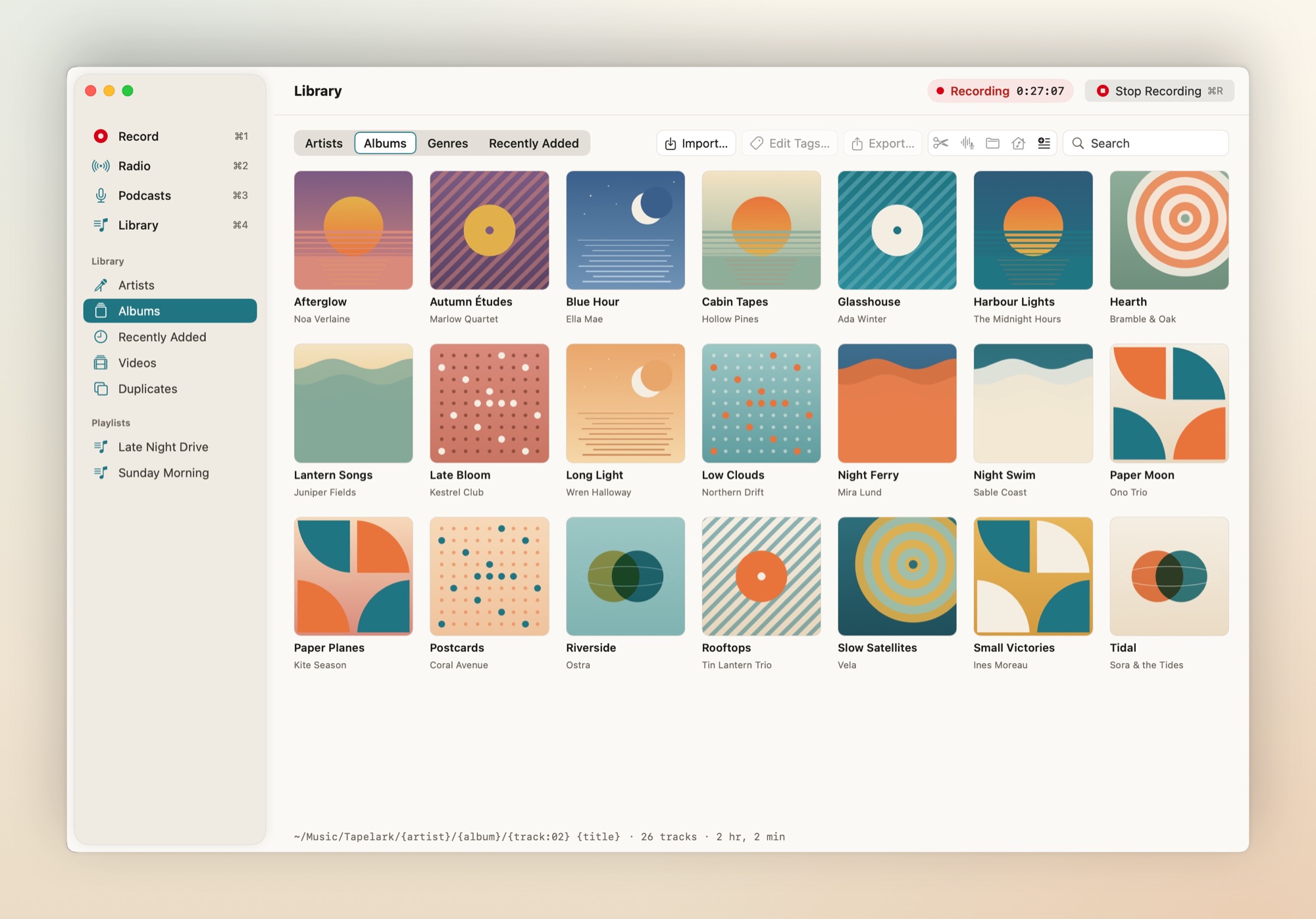
That is what Tapelark saves. It records a station's own stream and writes one file per song into a folder on your computer, on an external disk or on a network share. A music server such as Jellyfin, Navidrome or Plex that scans that folder picks the songs up like any other files. This guide shows how to set it up on the Mac, on Windows and on Linux.
Download TapelarkSee pricesFree for 14 days, every feature
What you need
- Tapelark on a Mac (macOS 14.4 or later), on a PC with Windows 11, or on a Linux desktop with PipeWire and GNOME or KDE Plasma. Tapelark is a desktop app: it runs on your computer, not on the server itself.
- A folder your music server scans, which your computer can write to: on the same computer, on an external disk or on a network share.
- The station as an internet radio stream.
What the files look like
- One file per song. When a station sends song titles with its stream, Tapelark saves each song as its own file, named
Radio/<Station>/<date> <time> <Artist - Title>. The first and last files of a recording are usually partial songs. - The station's own sound. Radio is saved in the format the station streams, MP3 or AAC, without encoding it again.
- Tags in every file. Each song carries its title, its artist and the station as the album, so a server that reads tags can sort the songs without your help.
- No account and no upload. The files stay in the folder you chose.
Two ways to get songs to the server
Record straight into the server's folder. Tapelark's library folder is the folder the server scans, or a folder inside it. Every song appears on the server after its next scan. This is the way for a schedule you set once and leave alone.
Record on your computer, then export what you keep. Tapelark's library stays where it is. You look through a recording, cut or delete what you don't want, and copy the rest to the server's folder with Export…. This is the way for a tidy collection.
Step 1: Choose the folder
For the first way, tell Tapelark where to save.
- On the Mac, open Settings > General > Library location and click Choose…. A folder on another disk or on a network share is one macOS protects: Tapelark explains that first, and macOS then asks once.
- On Windows, open Settings > General and choose the Library location.
- On Linux, open Preferences > General > Library location and click Choose…, which opens your desktop's folder chooser.
Tapelark warns when the folder is on a removable, external or network drive, because that drive has to be connected when a recording is saved. Choosing another folder does not move the files you already have.
Step 2: Set the file names
File names come from a template, and radio has its own: on the Mac under Settings > Formats > File Names. A template is text with fields in braces, such as {title}, {artist}, {source} for the station and {recorded} for the date. A / makes a folder, and a live preview shows the name a song would get.
So {start_year}{start_month}{start_day}_{start_hour}h{start_minute}-{end_hour}h{end_minute}_{source} names a recorded show 20261121_12h00-14h00_Example Radio. A template applies to new files only; files already in the library keep their names.
Step 3: Record, or set a schedule
Open Radio, find the station and press Record. Tapelark records the stream itself, not the sound of your computer, so you can listen to something else meanwhile.
For a show that airs every week, set a schedule with the station, the start time, the duration and the weekdays: How to record a radio show at a set time. Scheduled recordings run while Tapelark is open, also with its window closed, and the computer has to be awake when the show starts.
Download TapelarkSee pricesOne file per song, in a folder you choose
Step 4: Tidy up before the server sees it
- Tags. Edit Tags… changes title, artist, album, track number, year, genre and the cover. Your changes are kept in Tapelark's library. Write Tags to File writes them into M4A and FLAC files, and on Windows into MP3 files too.
- Partial songs. Delete the first and last file of a recording if they are cut off, or cut a file with Trim…. Tapelark keeps the whole file; a trim applies when you export.
- Songs you already have. Stations repeat their songs. Duplicates in the Library lists tracks that are the same file or probably the same recording, and Settings > Formats > Duplicates sets what happens to new ones.
- Export. Export… copies the tracks you select to a folder in the format you choose, with their tags, cover, trims and tag edits, named with your template. Nothing is overwritten, and your originals are not changed. For a radio song whose tags you corrected, an export is the sure way to get the corrected tags into the file the server reads.
Step 5: Let the server scan
Your music server finds the new files at its next scan of the folder. How often it scans, and how it shows an album named after a station, is set in the server.
Questions
Does Tapelark run on the server?
No. Tapelark needs a desktop: a Mac, a PC with Windows 11, or Linux with PipeWire and GNOME or KDE Plasma. It records on your computer and saves into a folder, which can be a share on the server.
Can I get lossless files from the radio?
Radio is saved as the station sends it, MP3 or AAC. Stations that stream only in Ogg, Vorbis, Opus or FLAC are marked Play only: Tapelark can play them but can't record them yet. What Tapelark records from an app on your computer can be saved as AAC, Apple Lossless, FLAC or WAV.
What if the network share is not connected?
Tapelark tells you that the library folder does not exist and asks you to connect its disk or choose another folder in Settings. Connect the share before a scheduled recording starts.
Can other people listen to my recordings on the server?
Tapelark records for your own private listening. Recordings are not for sharing with other people or for streaming to them. More about private use.
Am I allowed to record a radio show?
Tapelark is for your own private listening. Follow the terms of the stations you listen to and the copyright law where you live. Tapelark never gets around copy protection: a stream protected by DRM is never recorded. More about private use.
What Tapelark costs
You can try Tapelark free for 14 days with every feature, with no account and no licence key. Until you buy, each recording stops after 10 minutes, and everything you've recorded is yours to keep.
Buying is a one-time purchase with no subscription, and the key arrives by e-mail. There is a licence for the Mac, one for Windows and one for Linux, each for one person on all their computers of that kind, and Tapelark Pro is one key for all three. You'll find the current prices on the Pricing page.
New to recording radio with Tapelark? Start with the guide for your computer: Mac, Windows 11 or Linux.
Files you keep
Fill your own library from the radio.
Tapelark is free for 14 days with every feature, with no account. Until you buy, each recording stops after 10 minutes, and everything recorded is yours to keep.